Intro
Hi! It’s time to skin the gameplay side of the game, with this article focusing on the UI part of it.
Scorebar
First, we’re gonna make the HP bar or… scorebar, since that’s how it’s called in the files. For the most part it’s split into two images. scorebar-bg is as the name suggests, the background, and scorebar-colour (yes it’s spelled the british way) is the part that reflects how much HP the player currently has.


scorebar-bg
scorebar-colour
scorebar-bg
You have a bit of freedom of expression when making HP bars, since they can be angled, be different lengths and heights, and honestly… that’s pretty much all you can do with a filling bar.
You can still make very interesting and cool designs by simply ditching the bar idea, or building upon it just like the makers of these did:


Or you can go with a non-standard design that fits your theme, like:


constellations for space themed skins
whatever idke’s skin has...
scorebar-colour
When you make the scorebar-colour, or the fill layer for your scorebar, you have to keep in mind the anchor points of the elements. scorebar-bg originates at X: 0 Y: 0, while the origin of scorebar-colour changes depending on whether or not your skin has a marker present.


You can see that If a marker is used, scorebar-colour will be positioned at X: 12 Y: 12, and if you don’t use one, it’s gonne be X: 5 Y: 16. Do note these coordinates are in SD, so you need to double that when skinning in @2x.
You can also see the suggested SD size on the wiki, which tells you the height is limited to 120px SD, or 240px HD. This used to not be a thing, but since the asset can be animated, bad actors were using it to gain a competitive edge by setting a pre-recorded gameplay of a map as the scorebar-colour and then playing it with difficulty increasing mods to cheat in a way. That’s why if you download some older skins you can see that parts of the scorebar appear cropped like this:
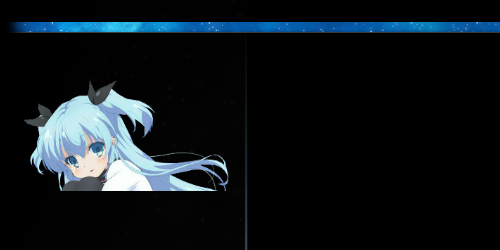
Tip: Once you’re done making your asset, it’s recommended you add ~5% margin on the right side of the file, which will prevent HP drain from cropping the bar when the HP is full.

scorebar-marker (and ki)
When it comes to the marker, there are two types you can choose from.
By itself, scorebar-marker is just a singular file that will be visible at the right edge of the cropped scorebar-colour. Not much to say about it other than you can see it bounce pretty much all the time.
The other type would be the scorebar-ki. Which is split into 3 files which change depending on the critical, warning, or passing zones the players HP is currently in. When you skin both the marker and the ki at the same time, the marker will be the one to display since it has higher priority.
If you don’t like the default cropping behavior, there is a clever gimmick you can pull off here to achieve an “offsetting” HP bar.
You have put your actual scorebar-colour as the scorebar-marker or scorebar-ki + scorebar-kidanger + scorebar-kidanger2 files. And make your actual scorebar-colour fully transparent (but still keep it’s size, don’t make it 1x1).


scorebar-marker
scorebar-ki/kidanger/kidanger2
There aren’t many differences between them, besides the fact that scorebar-marker has an additive blend mode and will change its tinting when the HP is low, scorebar-ki, scorebar-kidanger, and scorebar-kidanger2 are 3 separate assets with normal blend mode, so you’re in control of how it gets colored at different hp percentages.
Key overlay
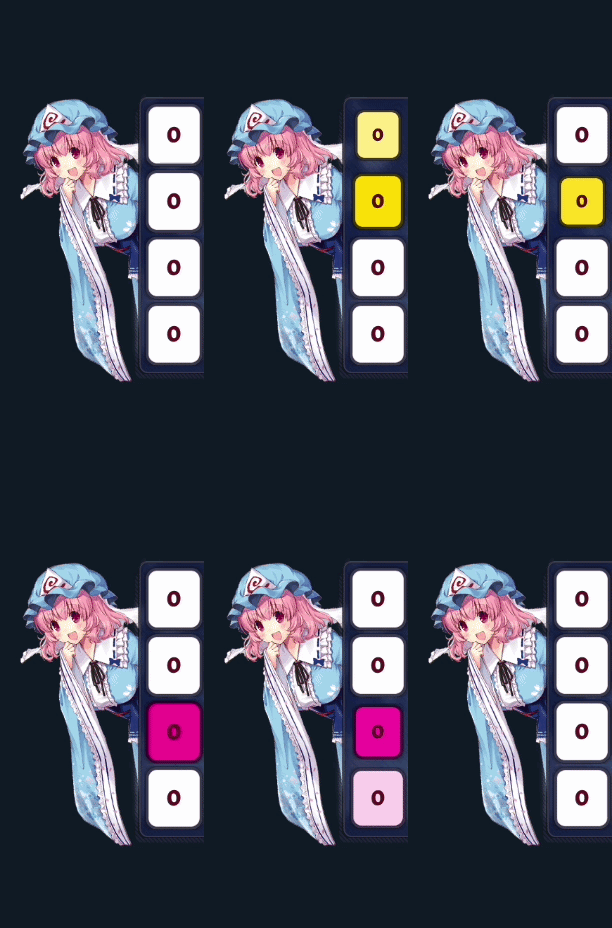
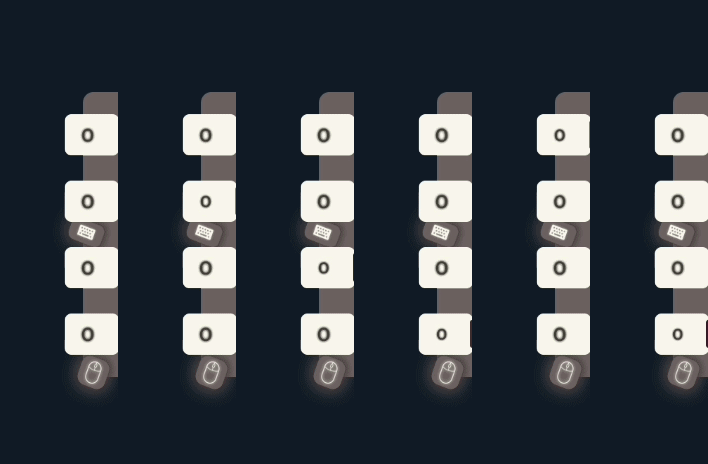
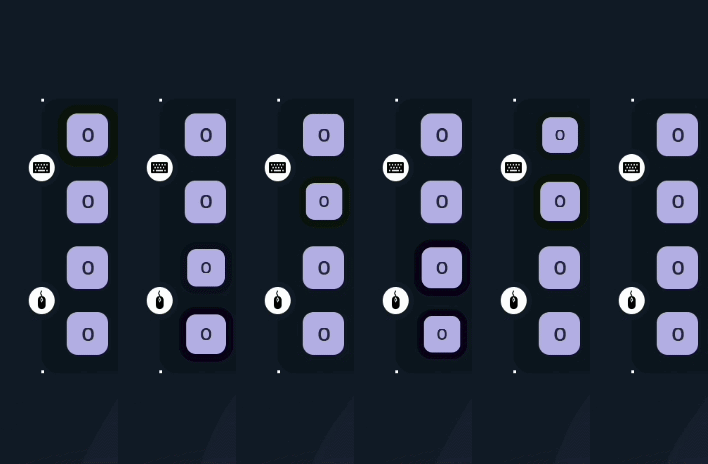
The key overlay consists of just 2 elements.
inputoverlay-background
inputoverlay-key
You don’t have much options since it’s just two files which aren’t that flexible, BUT that does not mean there is no room for some creative designs to happen.
The key overlay is made of, inputoverlay-key, which is displayed 4 times in osu! Standard to represent two keyboard keys, and the 2 mouse buttons, and 3 times in catch, for the side to side movement keys and the dash.
Lazer also displays only 3 keys on its LegacyKeyOverlay components since it processes inputs a bit differently. Both keyboard and mouse will use the same 2 keys, while the 3rd one is used for the smoke keybind.
When pressed this file will always scale down and get tinted, yellow for the keyboard and movement keys, and pink for mouse buttons, dash, and the smoke. The tint gets applied multiplicatively. So you can get around it by making the keys darker for less tinting or even black to completely negate it.
Skinners combined that technique with placing borders below the keys on the inputoverlay-background in order to create a quicker, and more subtle “flashing” effect when pressing keys.
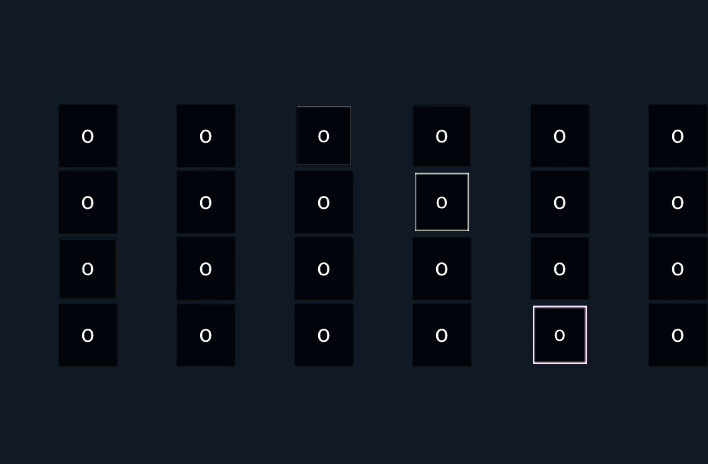

You may have noticed that when you view the inputoverlay-background asset on the wiki, the file is laid out horizontally.That’s some weird game design choice, and we just have to accept it as is. Another a bit less noticeable quirk is the scaling. The file gets stretched in game by a factor of 1.05. To combat this, you can downscale your final export of the file by 0.95238 vertically (that is horizontally on the file itself since it’s flipped 90 degrees in-game). That way you get pretty much your original resolution after the game does its own stretching.
Fonts
And since we’re on the topic of the key overlay, you may want to skin the numbers that represent the amount of clicks it displays.
Any skinnable fonts in the game are using PNG files which follow a simple naming scheme of a prefix representing which numbers the PNGs are for, followed by what symbol is displayed.
The fastest way to skin all the files in photoshop (and most likely other programs too, although execution may vary), is to make a new text layer for each font file, rename that layer according to the {prefix}-{#}@2x naming scheme.
Then, select all the font layers, change the font to one of your choice, and change the color.
If you’d like to add any layer styles, like stroke, shadow, glow, or whatever really, do it for only one layer, and then right click it, select “copy layer style”, select all the font layers you want the style to apply to, and then right click and select “paste layer style”.
When you’re ready, select all the font layers you have, right click > Export as. Photoshop will automatically crop the files and export them with the layer name. But, sometimes you may want to make all the images the same width to avoid the score from moving too much. Simply select all the layers in the Export as window, and change the width to be the same number as the widest image.
So now that you know how the general process looks, let’s move on to the specifics of each file.
scoreentry


For the numbers on the key overlay, as well as the in-game leaderboards, you’re gonna use scoreentry.
Note: Remember that the wiki has all the info you would ever need, but let’s look at the recommended SD size for now.
You can see that all the scoreentry number files have the same width and height. This prevents them from moving around when the score is changing. This practice is commonly called monospacing, and is very popular in programming. Just make sure you don’t apply the same width to the comma, dot, x, and percent files. Those should stay more or less their original width.
Another important thing to note is the overall small size the numbers have. They stand at a whopping 14px SD, so 28px HD (or @2x). I wouldn’t try going much above that since it will be very hard for you to make it look good in all the places these are shown.
When it comes to the color of the scoreentry files. You should keep them white since their color is applied multiplicatively, and the game will color them wherever it needs them colored. But, you have absolute control over the color of the key overlay text. You can change what colors those would be by setting an RGB value for InputOverlayText: in the [Colours] section of your skin.ini file. What you don’t have control over, is the K1, K2, ... text that appears before any input is registered on the key overlay.
score


Now we can move to the score counter in the top right of the screen. The process is gonna be exactly the same as for any other font files, so it’s no different here.
But, here you have a way to organize your files a little. If you make a [Fonts] section in your skin.ini, you can then use the ScorePrefix: command, which allows you to not only change the prefix used from the default score-1, score-2, ... to something of your choosing (for example ScorePrefix: numbers will make the game look for files numbers-1, numbers-2, etc.).
On top of that, you can set its value to something like fonts/score, which will make the game look for files named score inside of the fonts folder inside of your skin.
You can then take it one level further than that, and create folders for specific fonts if you were to change them often, or just as an option for players to choose one they like most. Just make a folder with the font files inside, name it something like the fonts name, and set the ScorePrefix: command to the path to your files, followed by the prefix. So just as an example, your ScorePrefix: command could be: fonts/inter/score, which would look for files named score, inside of a folder named inter, inside of a folder named fonts.
Also unlike scoreentry, you can easily change the spacing of the score numbers, by changing ScoreOverlap: in skin.ini. Positive integers will make the numbers overlay, while negative will add a gap. The default value is -2.
Centering accuracy
Another thing you may be interested in because you’ve seen it on other skins, is centered accuracy.
The trick is super simple. All you have to do is make a very long score-percent file and omit the @2x version there. No point in skinning it since the percent symbol itself will disappear because stable will not render very large files, but the numbers will still be offset.

The width of the file, just like anything in stable, is resolution dependent. Meaning that even if the accuracy appears centered on your screen which most likely has a 16:9 aspect ratio, someone who has an ultrawide monitor will not have the accuracy centered on their screen since it would require a much longer file. And in order to find the width for that file for your aspect ratio, you can apply a formula to find out what that number will be.
- Find what your in-game resolution is in the settings
- Check what aspect ratio it is on the internet.
- Find the SD skinning width (
ratio_widthin the following formula) of your aspect ratio.- That would be your resolution at
768pxheight. - Easiest way to get this is to either make a rectangle, lock its proportions, and change the height to
768px. Or use Aspect ratio calculator, change the aspect ratio to match what you got fromstep 2, and change theheight (pixels)value to 768
- That would be your resolution at
- Find the width of your
score-0.png.- All of your
scorenumber files should be the same resolution in order to get perfect centering. - Also find the width of your
score-dot.pngorscore-comma.pngif your locale uses commas for decimals.
- All of your
- Find your score number overlap.
- This is located under the
ScoreOverlap:command in the[Fonts]section inside the skin.ini file. If it is not specified, that means the game is using the default-2value.
- This is located under the
- Open your
score-percentfile in your image editor - Change its width to the number you got from this formula:
(a - b - 4c - 6d) / 1.14ais theratio_widthyou got fromstep 3bis thewidthofscore-dotorscore-commacis thewidthofscore-0.pngdis thevalueofScoreOverlap:in theskin.ini
ScoreAlignCentre
If you’re using the Cutting edge release stream, you can use the ScoreAlignCentre: command in the [General] section in skin.ini. This will however center the entire section normally visible in the top right of the screen.

Combo
If you checked how your numbers looked in-game after you exported your score files, you may have noticed that your combo counter is already skinned, and it uses the same files as the Score counter. This is the default behavior, but if you want to, you can make another set of numbers, and in your [Fonts] section add ComboPrefix:, which would point the game to the files you would like used for the combo counter. And just like the score files, you can put them in their own folder, and control their spacing using ComboOverlap:, which also has a default value of -2.
Overlays
And now that your numbers are skinned, you could try making an overlay for them, like the ones here!
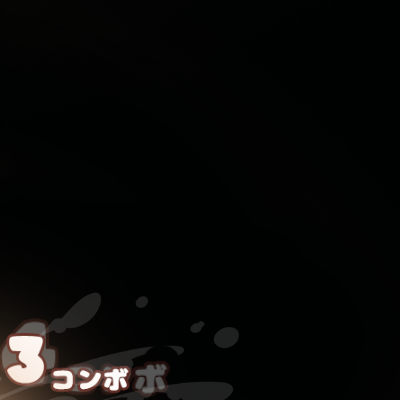
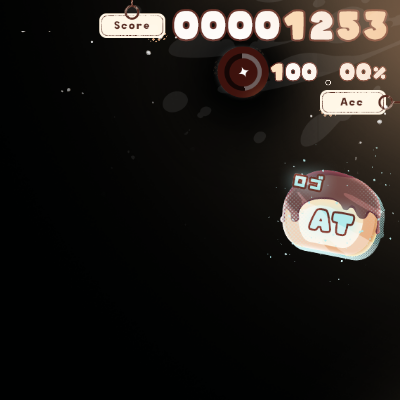
Combo
Score
These are made using scorebar-bg once again. But first you need to extend it to match the resolution you’re skinning for. For 16:9 HD/@2x it would be 2732x1536. Then you can start placing your assets in the corners to make them overlay the score section in the top right, combo in the bottom left, or anywhere really.
Remember you can also change the pie-chart to something else in the settings and then make a cool overlay for that too!
You can also make a border around the playfield to help you show the possible area where circles can appear. The size of your playfield border should be 1636x1228 and centered exactly in the middle of your scorebar-bg. This will make a border around the playfield exactly as it would appear in the editor, which also means that low CS circles will appear to protrude outside of it. If you want to avoid that, you can add some extra padding to your playfield.
{show how extra padding is added}
Smaller files
Moving on to the last section of this article, you’re gonna skin the files that are not always visible.
section-pass/fail

section-pass
section-fail
Like the section-pass and section-fail files. Those appear during breaks and represent how much HP the player has at the break point. More than 50% will display section-pass, while below 50% will display section-fail. Those are anchored in the center of the screen. So if you’d have a need you can just expand the canvas a lot and move them around.
You can’t do anything about the way they appear, but you can change the sound that accompanies them. It’s called the same as the files, just without the dash in-between the words, so sectionpass.wav and sectionfail.wav for example.
ranking-{x}-small


We’re not gonna explain how to skin them here since we have already shown you how to do that in the song select tutorial, so if you want to learn about them, click here.
play-skip
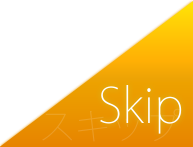
The play-skip button appears only when there is a lot of time before the first note of the song, or after the last note of the song. It will always be slightly transparent, and will become more opaque when hovered. It’s anchored to the bottom right, and has no size restrictions, so the resolution you skin it as will become the hitbox of the button, including any blank space your asset may have.
arrow-warning
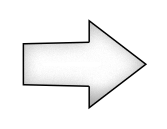
The arrow-warning file appears right before a break ends to grab the player’s attention.
The file you skin will always be the arrow that appears in the top left of the screen, so if you make it an arrow it should be pointing to the right. Avoid adding any text, since it gets mirrored on other sides of the screen.
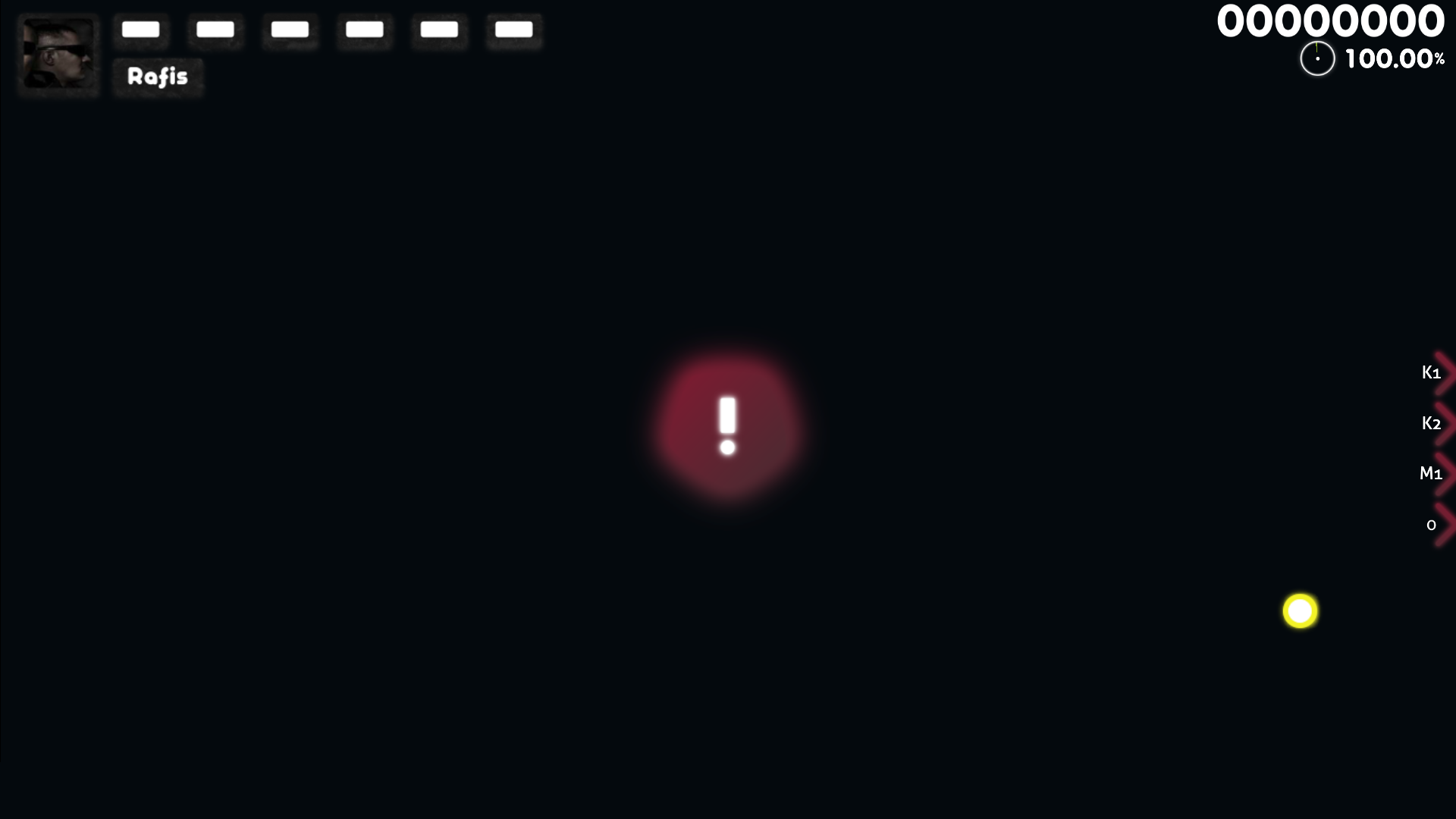
It’s also possible to exploit the anchor point a little, and move the asset to the center. All you have to do is make the canvas very big, and move the asset to the bottom right. It’s not as common, but it can be done, and just like anything in stable, the resolution to achieve the centering is dependent on the aspect ratio.
In the case of the skin below, the resolution of arrow-warning is 1300x800 SD.
menu-button-background
If you skinned song select, you should already have this file in your skin’s folder. It’s the asset used on the song carousel. But its right side is reused as the leaderboards on the left of the gameplay screen.
To learn more about it, read this part of the song select tutorial.
play-unranked

Lastly, you can add play-unranked, which shows up at the top of the screen when playing a map with autoplay or target practice. Once again, its anchor point is in the center, so you can play with the canvas size and make some interesting designs.
Credits
- 天空の ROSE - Hoshimachi Suisei by
haruka - The Roundtable 2026 by
Spoo - 符玄 Master Diviner (Fu Xuan) by
Miorine - idke 1.1 by
idke - Noel by
shouyouanddowny - Ghost Rule by
RedoandXootynator - 『 東方Project 』~ re;Yuyuko Saigyouji by
CloudKeys - WhiteCat 1.0 by
cyperdark - BlooMoon Re;Done by
Redo - Amaestric by
Abyssal - Fairy Bread Bakeoff!! by
Spoo - Rafis 2k18 by
cyperdark