Intro
In this article of the skinning tutorial, you’re gonna learn how taiko is skinned. It’s honestly super simple, and you’re gonna have it done extremely quickly. So let’s get the intro over with, and move on to the interesting stuff.
Playfield
First we’ll show you how to work with the playfield. That’s gonna include the interactive drum, as well as the lane the notes slide on.
Drum
Starting from the left, you will have three files to work with. One of them is the background for the left side, and the other two make up the drum which highlights whenever you click the corresponding key, it’s best to leave the resolution of these file just like the wiki suggests, in order to preserve the alignment of the files. Unless you have a very good reason to do so, I’d advise to leave it at the recommended size.On top of that the position of those files changes depending on the [skin.ini] version, but since you’re advised to skin on 2.7, and if you were curious about the exact values, you can always check the wiki.
taiko-drum-inner.png

When skinning taiko-drum-inner.png, you should make sure the rounded end faces to the left, so the cut appears on the right. That is if you’re going with a design that even skins it like a taiko drum. You’re not limited to it, so you can do just about anything. As long as you remember that the layout will be mirrored on the other side of the drum.
taiko-drum-outer.png

The same idea applies to the taiko-drum-outer. The only difference is that its direction is reversed. The cut should appear on the left, so the rounded side faces right.
taiko-bar-left.png
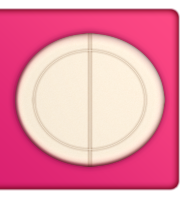
taiko-bar-left.png is the background of the drum. You should not extend too far past its usual area since it’s gonna cover the lane. And it’s a very good idea to make a backdrop with the shape of your inner and outer drum elements in order to give their pressed state a bit more of a tactile feel. Without that they kinda fall flat and appear out of thin air. But who knows, perhaps this is something you like.
Lane
taiko-bar-right.png

taiko-bar-right.png is the lane the notes will slide on. It stretches to fit the screen width, so you don’t have to make a super big file for it. This asset also has another state.
taiko-bar-right-glow.png

Which is called taiko-bar-right-glow.png. It shares the same properties as the previous file. And you will see it appear during kiai when playing a map.
taiko-barline.png

Lastly, we have taiko-barline.png. This is a line that represents a measure of the song, unless it’s omitted by a timing point.
Notes
Everything was super simple so far, so we can move on to skinning the notes. Taiko has 2 types of notes, small notes, which are scored with just a simple click of a button, and big notes, which require you to press both buttons of the notes color at once. There is also the drum roll, which is like a slider in taiko, but you have to play it like a stream in standard.
All of the notes have their colors forced, and it’s applied the same way as any tinting color would be within the game (multiplicative), so you can play around with the base color of the asset to achieve different result, but something tells me the red and blue is too iconic for taiko, so it’s best to leave it the way it is.
Moving on to the files you need to take care of in order to have the notes skinned, you should skin them all at 236x236 @2x. The taikohitcircle.png and taikobigcircle.png are the actual colored parts of the notes. Both of them have a respective overlay file (taikohitcircleoverlay.png & taikobigcircleoverlay.png), and just like the hitcircleoverlay.png in standard, this one does not get tinted in any way.




Drumroll
And now it’s time to skin the drumroll.
Once again it’s nothing complicated. Just 2 maybe 3 if you don’t have one of them already skinned.


The first 2 are taiko-roll-middle.png and taiko-roll-end.png. The former of which is the body of the drumroll. It stretches for as long as the drumroll lasts, and then taiko-roll-end.png gets drawn at the end of it.
The taiko-roll-middle.png file should be skinned at exactly 2x256, meaning it’s a very thin vertical line which will stretch to fit the drumroll. While taiko-roll-end.png on the other hand should be skinned at 128x256. It should only be the right half of a circle, meaning the “cut” part is hugging the left edge of the canvas.
Both of these files get tinted yellow at first, which then turns to red. And once again, these colors can not be altered, unless you recolor the base asset and rely on the multiplicative blend mode to give you a different result.
Lastly, I mentioned a third file that goes with the drumroll, and it would be the sliderscorepoint.png. It’s the same file used on sliders in osu!standard, so if you change it for the drumroll, it will also affect it there.

Swell
There is also another thing which is reused from standard, but it’s not related to the drumroll.


Taiko also reuses the spinner, which in taiko terms is called a “swell” I guess. But it doesn’t use all of it. Just the spinner-circle.png and spinner-approachcircle.png files from the old spinner variant, so if you use the new one in your standard gameplay, you’re gonna need to make a new one for taiko and they won’t interfere with eachother. If you’d like to know how to skin spinner-circle and spinner-approachcircle, you should read the article about skinning osu!standard where it’s all explained. Click here
The swell also introduces one new file which slides across the right side of the bar alongside other notes to show the player when a spinner happens in a map. The filename is spinner-warning.png, and it’s probably best to skin it somewhat similar to the notes but distinguishable enough where you won’t confuse it with them.

Hitbursts
And now, you should be done with the entire playable part of the gamemode. But there are still some things that are important to gameplay which still need to be skinned. Like the hitbursts for example.
And there isn’t really much to say about them. They follow a consistent naming scheme, and are super simple to do in general.






Just skin them however you want, and export them. The only thing you need to know about them is that they show up in the middle of the hit area and have a subtle animation when appearing.
Sliderbar
There is also another, not so subtle animation you may have noticed when playing taiko. I’m talking about the large scrolling image on top of the playfield, which is called the taiko-slider.png.

It scrolls at a constant speed from right to left, and should be a seamless image. The wiki says the suggested SD size is 776x162, and since you should be skinning in @2x, the resolution should be doubled, giving you 1552x324, (though there is no width limit).
The taiko-slider.png also has an interaction with the misses and the player’s HP during breaks. When the player misses, or their HP is below 50% during a break, it gets replaced with taiko-slider-fail.png, which has the same properties as the regular taiko-slider.png. Both of these also get upscaled by a factor of 1.4 in-game, and will also not show up if the map has a storyboard and the player has them enabled.

Pippidon
But what will always be on top of the playfield there to cheer you on while you play is the pippidon. A little don-chan variant of osu!’s mascot, pippi.
This asset is possibly the first animation that will be covered in the tutorial for a while. Mainly because it’s not exactly how the rest of the animated elements would be made.
Most people would either use some animation they found online, but some would draw it themselves. You can make the animation sprites whatever resolution you want, but should keep in mind that the animation itself is BPM dependent, and their animation names is just a name of the state, followed by the frame number starting at 0.
Pippidonidle
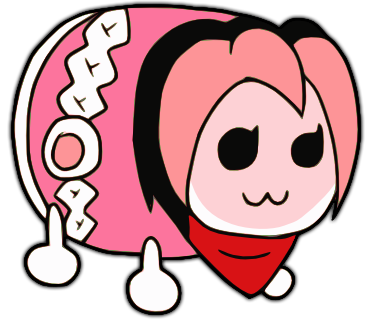
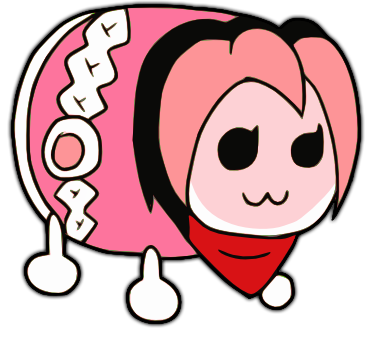
pippidonidle.png plays during breaks or when waiting for the player to hit the next note
Pippidonclear
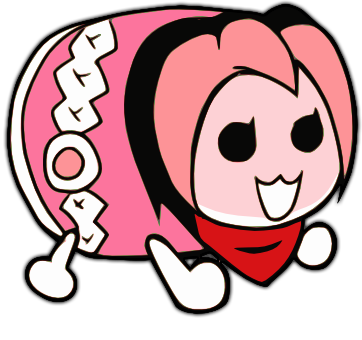
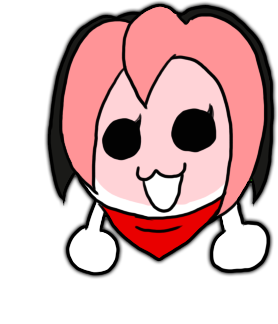
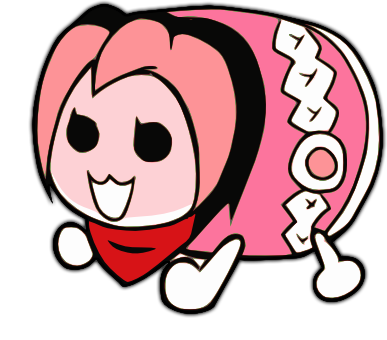
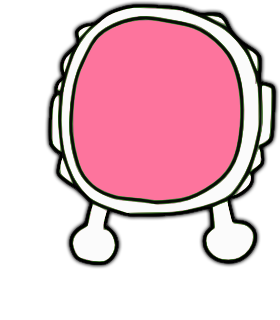
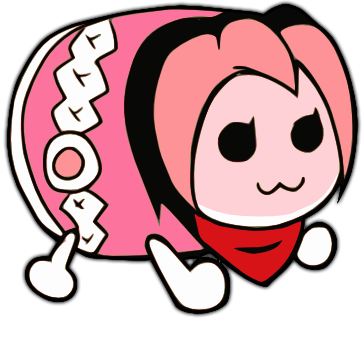
pippidonclear.png only plays once when the player hits a combo milestone; then goes back to the idle or kiai state.
You can only skin 7 frames of it (numbered 0 to 6)
The frames will also play in a specific order, which you can see below.
0 1 2 3 4 5 6 5 6 5 4 3 2 1 0
Pippidonkiai
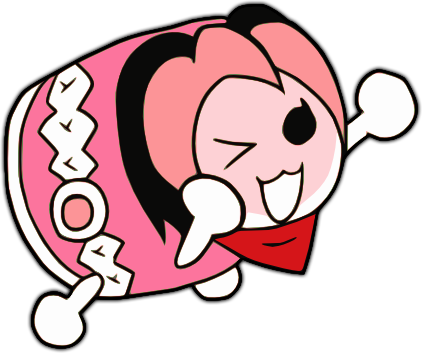
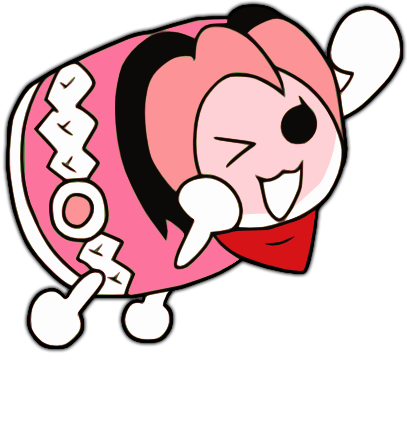
Plays during “kiai time”, the special “hype” part of the beatmap
pippidonfail.png overrides this if the player misses a note during kiai time.
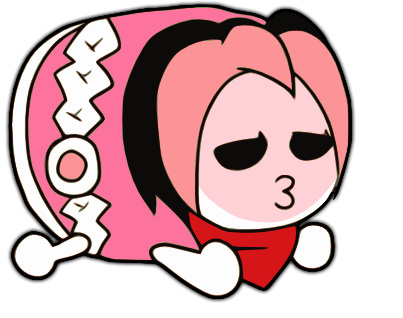
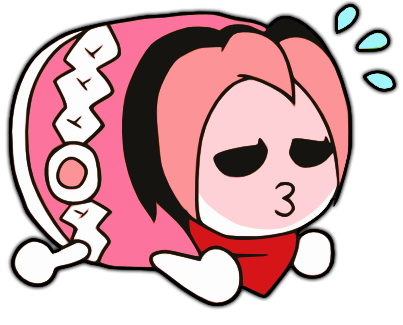
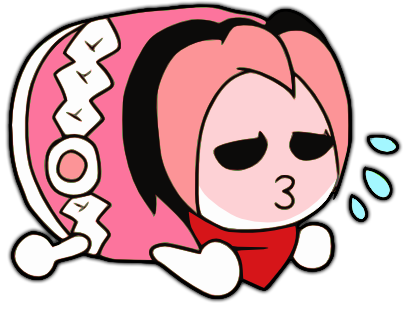
Pippidonfail
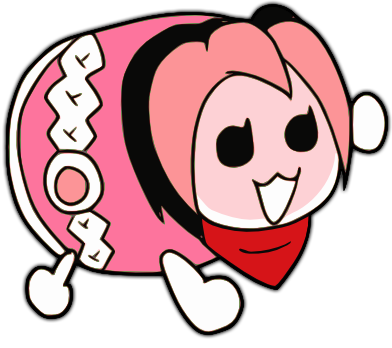
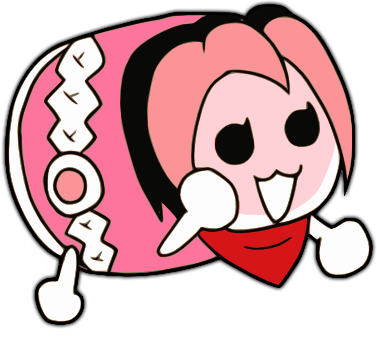
pippidonfail.png plays when the player misses a note or does not have enough health during a break.
And as I said earlier, it overrides pippidonkiai.png if the player misses a note during “kiai time”
Shared files
Well that should be the bulk of the tutorial, but to close it all off, I’m gonna mention the files that are shared between other gamemodes which weren’t mentioned before.
Approachcircle
approachcircle.png is used as the outer rim of the hit area


Sliderscorepoint
You already know about sliderscorepoint.png. It’s used on the drumroll and is the slider tick on sliders in osu!standard

Scorebar
The scorebar is reused across all gamemodes, and if you’d like to know everything about making it, you should go and read about it on the gameplay interface article. Click here.
Spinner
Spinner or the swell in taiko terms, is reused from standard, and uses the old spinner design from the spinner-circle.png and spinner-approachcircle.png files.
If you use the new spinner design in standard, they will not interfere with each other.
Outro
And that’s it. You have finished skinning taiko, and thus have arrived at the end of the article. You should try skinning osu!catch next! It’s very simple and shouldn’t take you too long.