Intro
Welcome to what many would consider the most important and exciting part of skinning. Today you’re gonna learn how to skin osu!standard gameplay. It’s not as hard or advanced as the previous segments, so you shouldn’t have many problems.
Hitcircle
Probably the main focus of the entire circle clicking game. The hitcircles, which are split into 3 elements.


When it comes to the “style” of the circles. People usually settle for 1 of 3 types.



Gradient
Outline
Solid
Of course you’re not limited to just these 3. You can design your circles however you want, but these 3 are just the most common. For exmaple, White Cat’s 1.0 hitcircles are a mix between an outline and solid circles, with some extra transparency on the solid part which benefits when reading stacks.

It’s good to consider adding transparency to your circles purely for that reason. Reading stacks on fully opaque circles can be challenging. Or in the case of mods like hidden where there is no approach circles, potentially impossible.
You can add subtle textures to the circles to make even the most generic design stand out in it’s own way. Just don’t go too overboard with adding details. The more detailed a circle is, the more visual noise you introduce, and the more visual noise there is, the harder the circles are to read and play at higher levels. Doesn’t mean it’s impossible, but high ranked players are known for playing with hyper-optimized skins (not ekoro, he’s different)
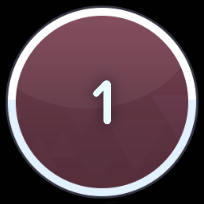
hitcircle.png
The hitcircle.png itself, which is the colored part. The colors are set in the [Colours] section of your skin.ini, and you can create up to 8 of them by adding Combo#: lines with RGB values inside of it. The color on the hitcircle is applied multiplicatively. So if you make a dark gray hitcircle, the color will be darker compared to its white counterpart, which would get fully tinted.
One important thing to note here is that the first color that will appear when you enter a map will always be the one set in Combo2: (or Combo1: if Combo2: is not present). Don’t ask me why. This is osu! skinning, things don’t make sense, you don’t question them, and just deal with it.
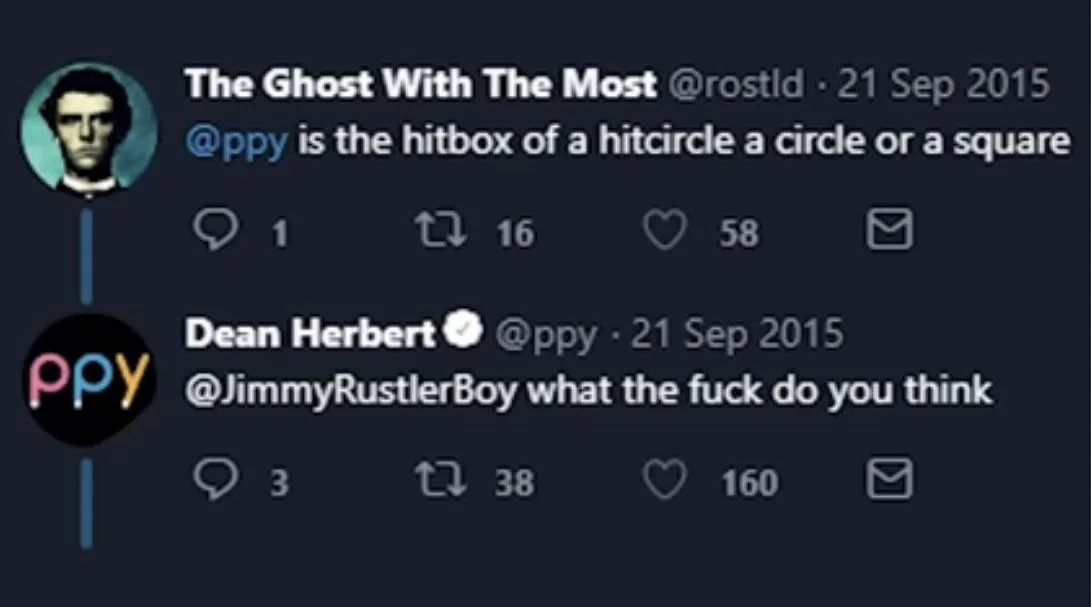
It’s recommended to make the hitcircles 236x236px @2x, that would make them a snug fit within the slider bodies. The hitbox will still stay the same at 256x256px, and no, if you make them 1 million pixels tall and wide, it won’t enable you to keep your cursor in one place while hitting all the notes without aiming.
The hitbox of the hitcircle is also a circle. I know. Shocking.
hitcircleoverlay.png
Next up we have hitcircleoverlay.png. This is the rim of the hitcircle. It does not get colored and is a completely static file.
There isn’t much to say about it. Usually people just make it a white outline.
approachcircle.png
Lastly, we have the approachcircle.png.
It shrinks over time to show you when to click the hitcircle or a slider. It gets tinted with the combo color. I don’t want to repeat myself here, but at this point you know how the color is applied (multiplicatively).
You can’t prevent the combo color from tinting the asset, even though many would really want it to be a thing.
Numbers


Hitcircles also have their very own set of numbers. You skin them just like the numbers we skinned in the gameplay interface article, but without the -dot, -comma, -percent, and -x files.
The fastest way of skinning any numbers is explained in the gameplay interface section of the tutorial. Click here.
You can control the spacing of the numbers on the hitcircle by changing HitCircleOverlap: in the [Fonts] section of your skin.ini file. And just like the score and combo files, you can put them inside of their own folder with or without a custom prefix using the HitCirclePrefix: command. If you want a more in-depth explanation of how those 2 commands work, you can read about it in the gameplay interface article.
Instafade
Instant-fading hitcircles or hitcircles without the fading out animation (they still have it, but it’s very short @ 60ms), rely on a skinning trick since it’s not possible to disable the animation from the settings in stable (can be disabled in lazer though).
The trick lies in the default-#.png numbers. On skin.ini version 1.0, the numbers had a fade out animation just like the hitcircle. But, on any other version, the numbers disappear instantly, while the hitcircle fades out.

1.0
2.0+
People noticed this, and started putting the actual hitcircle assets ON the numbers in order to get rid of the animation. This works surprisingly well, but has its downsides. First of all, you lose combo colors. Not that big of a deal for skins with only 1. You can just embed the color on the hitcircles themselves.
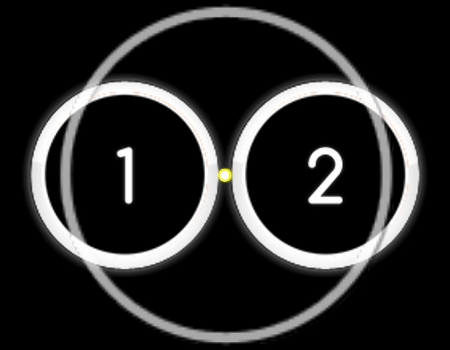
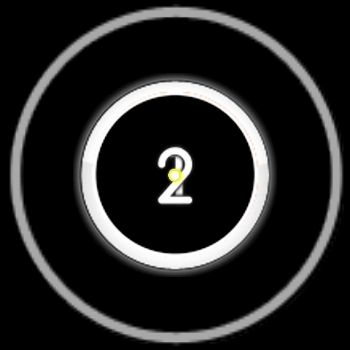
On top of that, you also lose proper 2+ digit combo count support. Since combo can go above 9, numbers will start to appear in 2 places, and since all numbers have the hitcircle embedded onto them, that means the circles will appear duplicated. To combat this, you NEED to adjust HitCircleOverlap: in skin.ini so the hitcircles appear as one on 2+ digit combo counts, and the numbers merge into one weirdly looking thing.
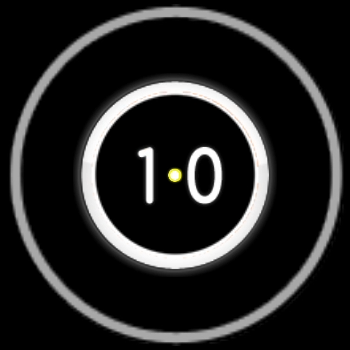
Regular skin
Instafade skin (broken)
Instafade skin (fixed)
Another way to go against the combo count number overlapping issue is using dots as numbers (or no numbers at all). Those appear uniform regardless of the combo count.
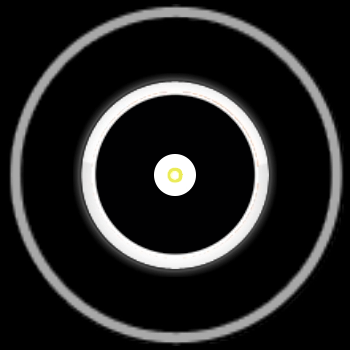
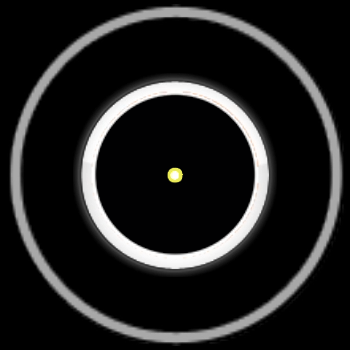
Dot numbers
Blank numbers
How to make circles instafade
Nowadays the process of making instafade circles can be fully automated with the use of programs like rednir/OsuSkinMixer, or clarks03/Osu-Instafade-Tool. If you want to learn what it takes to make instafade circles yourself, you can read the guide we wrote.
Triple stacking
Triple stacking on the other hand is a relatively newer thing (skinners knew of it for quite a while, but was very underutilized by players). It’s main purpose is to speed up the fade in animation of the hitcircles for high AR gameplay. It’s mostly done on DT skins with fully white circles to gain as much competitive edge as possible.

Regular skin
Triple stacked skin
In the above example, the triple stacked skin’s circle is fully white in ~22 frames, which compared to the ~31 frames of the regular skin is 1.4x or 150ms faster.
It involves the instafade gimmick BUT, with the difference of hitcircle.png and hitcircleoverlay.png not being blanked-out while they also get embedded on the numbers. Hence the term triple stacking, the white circle appears on the hitcircle, hitcircleoverlay, and the number layers.
To make a triple stacked skin, just make a regular instafade skin as explained above, but leave the hitcircle.png and hitcircleoverlay.png files not blanked out.
Cursor
Another big part of the gameplay is the cursor.
It’s best to make it easily distinguishable from the rest of the skin in order for many players to consider it “playable”. Using the same or similar colors compared to the rest of the skin will result in lack of contrast, and a mob of angry players in your DMs. The cursor itself can be made of 2 or 3 files, depending on which style you want to go for (regular trail vs long trail).
cursor.png

You can really make it however you want. But the most common way would be a white center, with colored border, and a very strong, or subtle glow to make it appear not as harsh. That doesn’t mean you can’t experiment, try coming up with something unique that still adheres to the overall feeling of the cursors used in the game.
cursortrail.png

Not much to say here. For the most part it’s just a blurred circle with a color similar to the border of the cursor. It just trails after the cursor to give it a bit more of a smoother appearance. You don’t have much control over the frequency of how often this file appears after the cursor, buuuut…
cursormiddle.png

cursormiddle.png in itself is super simple. It’s just another layer to the cursor. It does not rotate, it does not scale when clicking, it just is.
Long cursor trail
If you add cursormiddle.png to your skin, it’s gonna make your cursor trail extremely long, and will also make it have an additive blend mode.

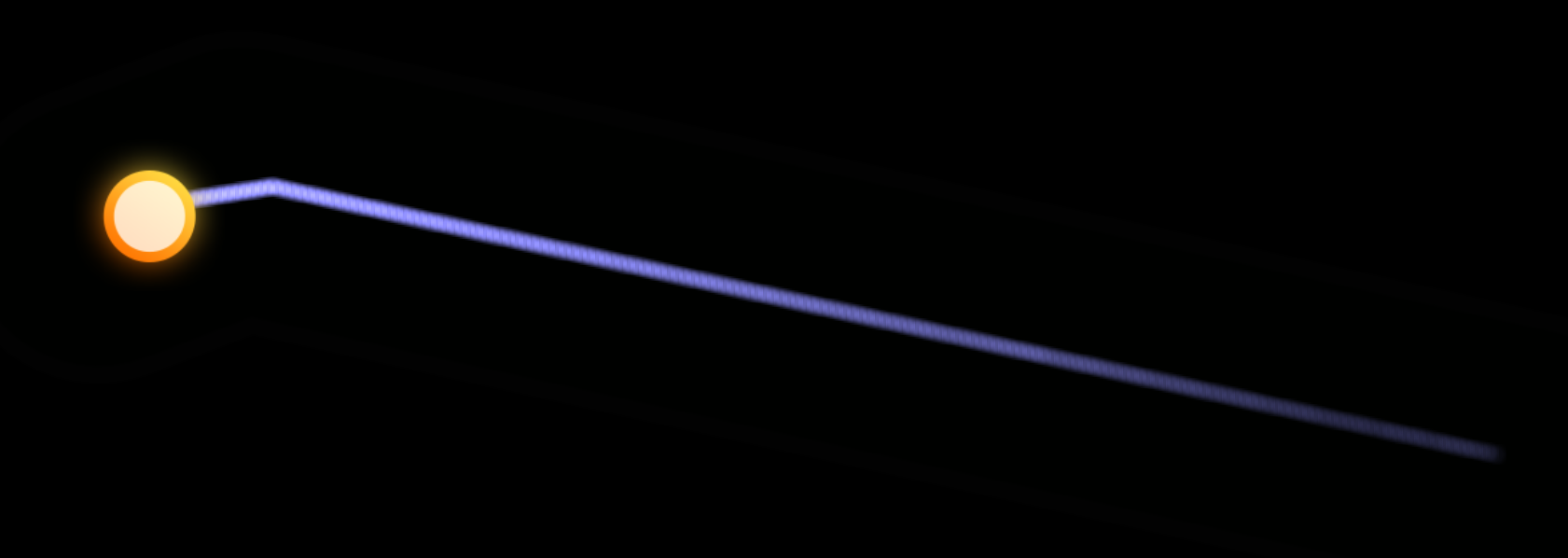
Without cursormiddle.png
With cursormiddle.png
In general, this isn’t used that much, especially for thicker cursor trails, but you probably recognize this from the most improved player of 2021 who’s a certain Canadian lady.
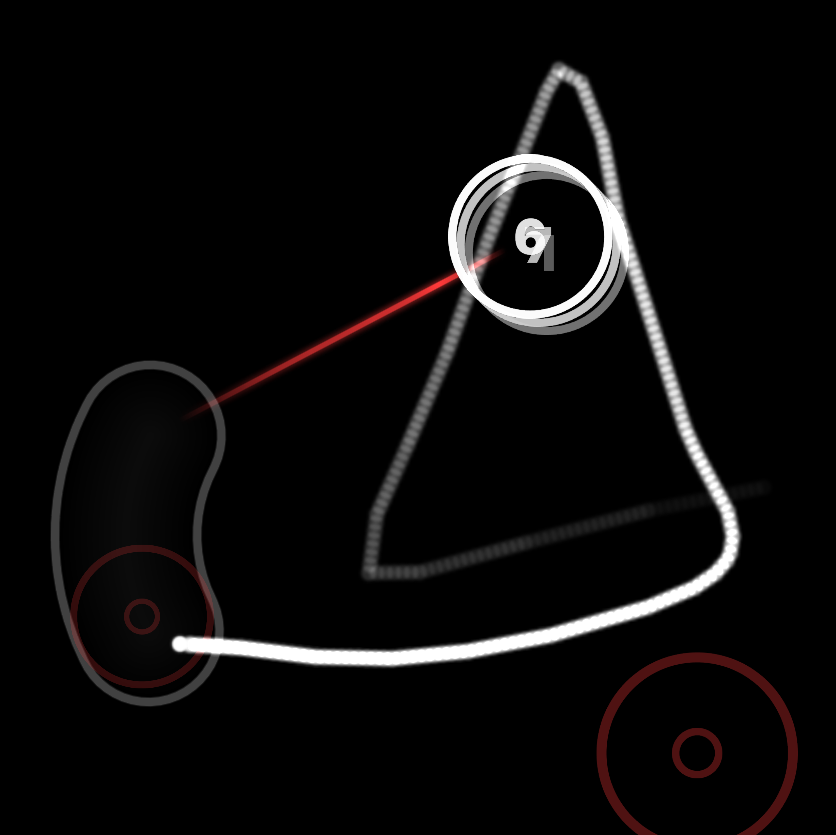
Anyway, bright and big cursor trail can be a bit distracting, so for playability sake, it’s best to keep it on the smaller side, and maybe a bit darker/transparent. Unless that’s what you want.
Using cursormiddle.png also has a little caveat. The spacing of the trail segments depends on the asset size, but also the in-game Cursor size: setting. And very often, to get the smoothest result you would need to go up to the highest in-game cursor size. You just need to make your asset smaller so it’s not as ginormous.
Another thing about cursormiddle.png is its behavior with CursorExpand:, as it completely ignores it. That’s why some players use a blank cursor.png, with the actual cursor skinned on cursormiddle.png to always bypass the CursorExpand: setting as they copy their cursor to another skin.
Lastly, if you have ever seen that one long rainbow cursor from cursor dance osu replays, I’ll shatter your dreams right here and let you know that one is not possible to make on stable since it was done on a third party client.
cursorsmoke.png
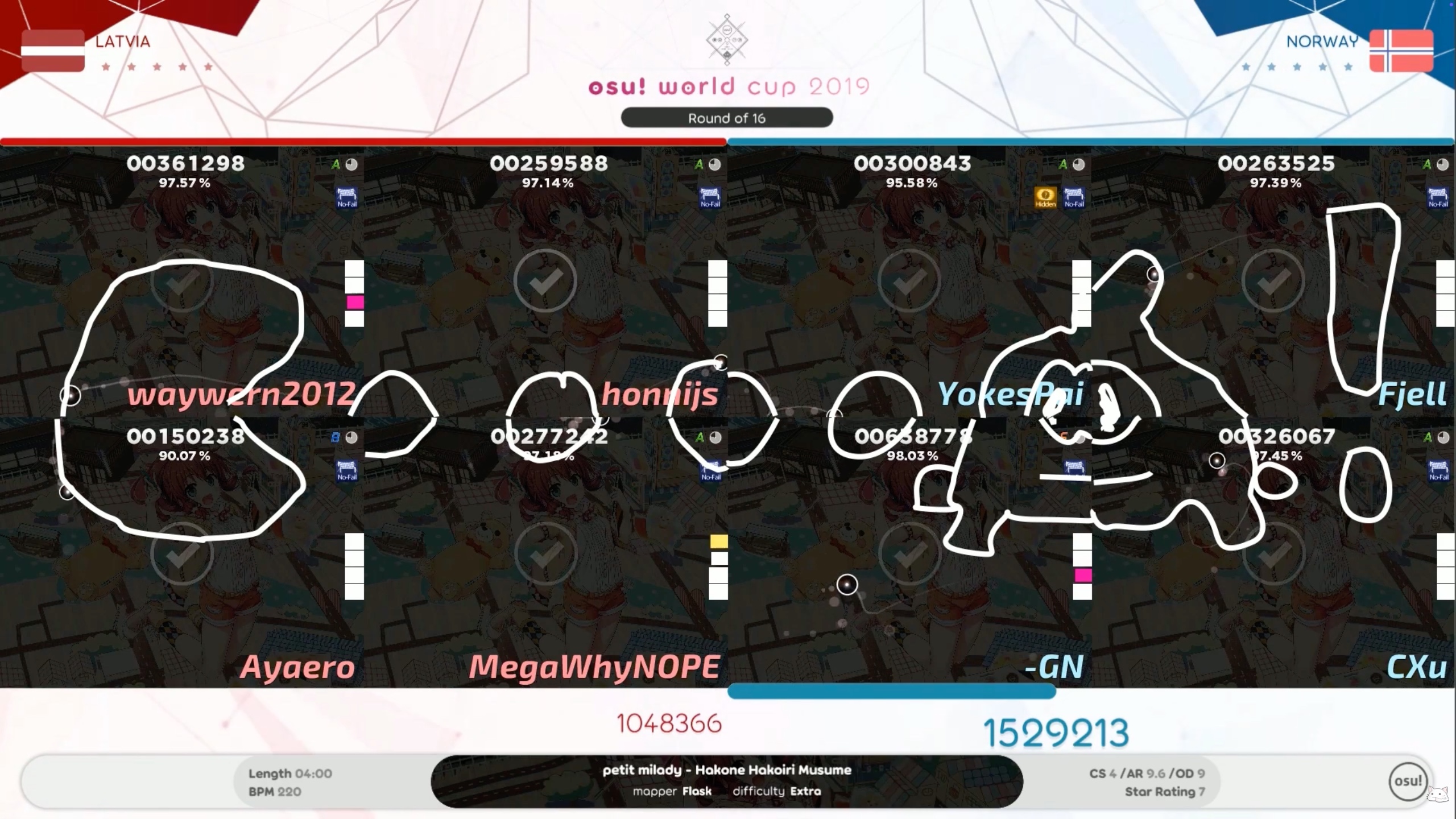
cursorsmoke.png is the last cursor related asset. It enables the player to leave a lasting mark where they moved their cursor, kind of like a drawing that fades after a few seconds.
It’s not very utilized on a day to day basis, but hey, there’s still some use
cursor skin.ini commands
There are a few cursor related skin.ini commands you may want to look at. You can find them and what they do on the wiki.
Sliders
At this point, your hitcircles and cursor should be skinned. Which means you should move on to sliders.
Slider start and end circles
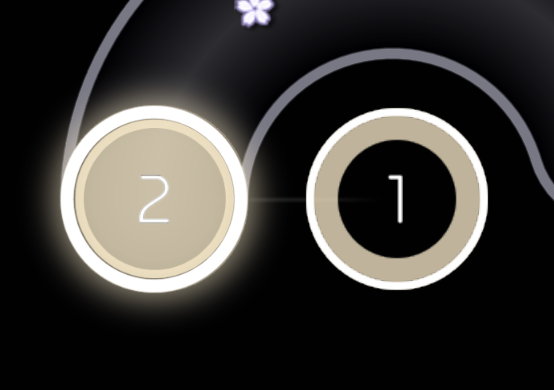
By default, the game will use the same hitcircle and hitcircleoverlay assets for the sliders. But it’s possible to have completely different looking ones for them. The files which make this happen are sliderstartcircle/sliderendcircle, and sliderstartcircleoverlay/sliderendcircleoverlay.
As a fun fact, did you know that 99.9% of skins have the sliderendcircles skinned, while the sliderstartcircle is barely ever skinned? That must mean people really like end circles  . . . Yeah it’s just blank in every skin ever, what else can I say.
Anyway, you can’t change the color of the slider circles themselves, unless you set the Combo# colors to white, and then embed the color on the circle PNGs using a multiplicative color fill layer, and then play around with its color.
Slider body
Slider bodies themselves, do not have a skinnable sprite. If they did you’d see some wacky skin designs with them already.
The only way you can customize them is by changing 2 lines in skin.ini.
SliderTrackOverride: changes the color of the slider body. You can’t remove the gradient that appears there, and you can’t have more than one like you would for the Combo# colors.
The other one is SliderBorder:, which as the name suggests, is the border of the sliders.
Both of these take only RGB values.
Slider ball
When you click on a slider head with correct timing, a ball will start rolling over the sliders track. This is the slider ball, and it’s skinned using the sliderb.png file. In the default skin, the slider ball consists of 3 files:


Sadly, the latter two are not skinnable within skins, but if a skin does not have a slider ball skinned, it will make it beatmap skinnable.
The slider ball can also be colored according to the combo color by setting AllowSliderBallTint: to 1 in the [General] section of your skin.ini, but it also needs to be enabled in the settings to work.
Depending on your design, you may also consider adjusting SliderBallFlip:.
sliderfollowcircle.png
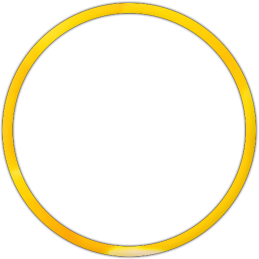
The big circle you see around the slider ball, is called sliderfollowcircle.png, and it’s a great visual indicator that shows you when you are holding onto a slider ball correctly and won’t get a miss when the ball reaches the end.
If you’re wondering what size your follow circle should be, then the wiki says the hitbox is 308x308px SD. But, people usually make them way smaller, since a follow circle this big is actually quite distracting during gameplay, and having a more confined space will force you to stay way closer to the actual slider ball, therefore lowering the risk of accidental slider breaks.
Fun fact: Did you know this element can be animated? Not many do.
The follow circle will also expand a bit when it goes over the slider ticks (sliderscorepoint.png),
Sliderscorepoint 
Which are those little circles scattered around the middle of the slider track. They appear according to the BPM of the map, and the mapper can set how often they appear. Skinning wise, not much to do here. Best to skin them regardless.

reversearrow.png

The reverse arrow is also a super simple thing to do. There are two ways you can go about making them.
The first, and probably the most common one, would be a regular arrow, circle, anything really. Just something that will appear in the middle at the end of a reversible slider.

The other one, would be the so-called “bumper”. This one has its canvas expanded to more than 236px HD, then a circle is made which will engulf the slider tail. After that all you have to do is mask out the unwanted parts to get the bumper look, and the base of it is done. You can still add an arrow in the middle or other elements for extra visibility.
Note: The animation of the reverse arrow can not be changed or disabled in any way. It will always bounce with the BPM of the song.
Spinner

Now it’s time for the spinner
And once again, there are two ways you can make these. Both of them also use separate files.
Old spinner will show up when the game detects spinner-background.png in the files on skin.ini versions higher than and including 2.0. Otherwise it’s gonna use the new one.
What are the differences? The old spinner has a background and a meter that would fill up to show you your progress. While the new one doesn’t have those, it does expand a bit when you spin, and also has more layers to work with.
Old

spinner-background and spinner-metre

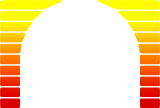
As mentioned earlier, to make the old spinner appear on versions above 2.0 (remember that your skin should be using version 2.7), your skin needs to have spinner-background.png present. This is the backing element of spinner-metre.png which by default is tinted gray. But, you can change the color it gets tinted with in the skin.ini file, by setting SpinnerBackground: to some RGB value in the [Colours] section of your skin.ini.
You may also notice that the top bar of the metre is flickering, which some can find distracting. This can be disabled by setting SpinnerNoBlink: to 1 in the [General] section in the skin.ini. spinner-background.png and spinner-metre.png are absolutely painful to align normally, but luckily for you, the PSD template comes with them pre-aligned, at least until you expand their canvas sizes, then they may not be aligned and you’re gonna have to figure it out yourself.
Usually people don’t skin them the way it was done in the default skin, but rather they just slap an anime girl on the spinner-metre.png and call it a day, or if they feel fancy they may add a small bar that fills up.

But that’s about it. The most creative use of spinner-background.png and spinner-metre.png in my opinion, is still the spinner which I think originates from mathi’s skin? It’s just very nicely integrated into the circle, and overall looks very good.
spinner-circle
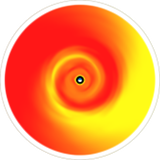
Not much to say here, it’s just a circle. The design is fully up to you. But you have to make sure that the canvas size you use is an even number, otherwise your spinner is gonna wobble, and nobody likes a wobbly spinner.

To make it easier for yourself, you can just make the spinner reach the edges of your canvas, but if your design does not extend to the edges, you can enable a centering grid in PS by going into the preferences and then clicking the shortcut on your keyboard
Tip: In Photoshop, you can setup your grid to always show you where the center of the canvas. Go to Edit > Preferences > Guides, Grid & Slices, then set your grid settings to: Gridline every: 50 Percent, with 1 or 2 Subdivisions. Then you can toggle the grid by pressing Ctrl + '.
spinner-osu

Next up, spinner-osu.png is a file you rarely see, but it’s the asset that shows after a spinner is finished. Nothing crazy to say here.
New

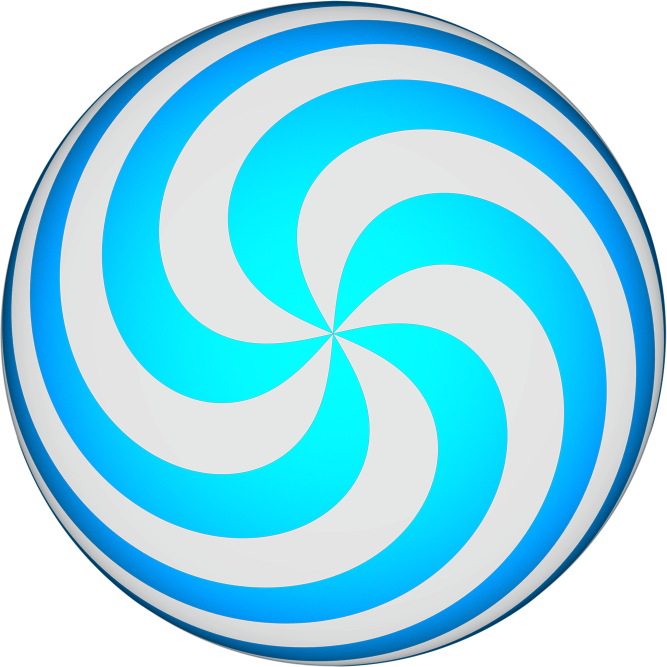
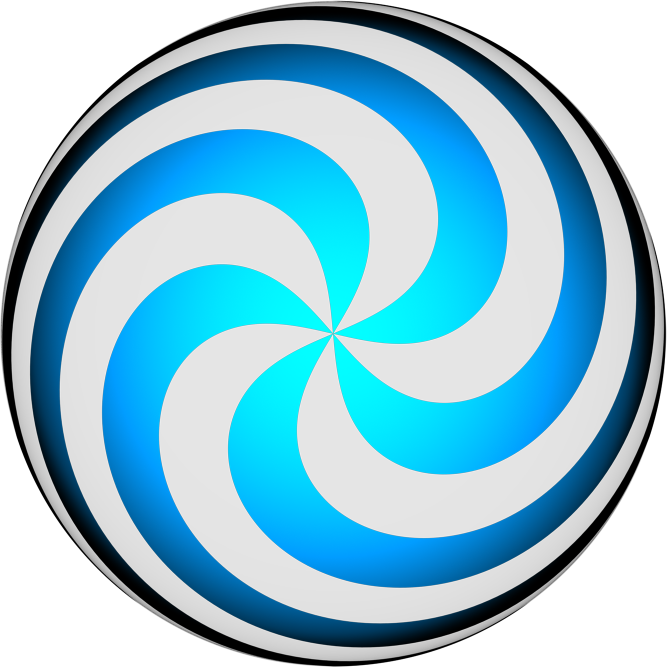
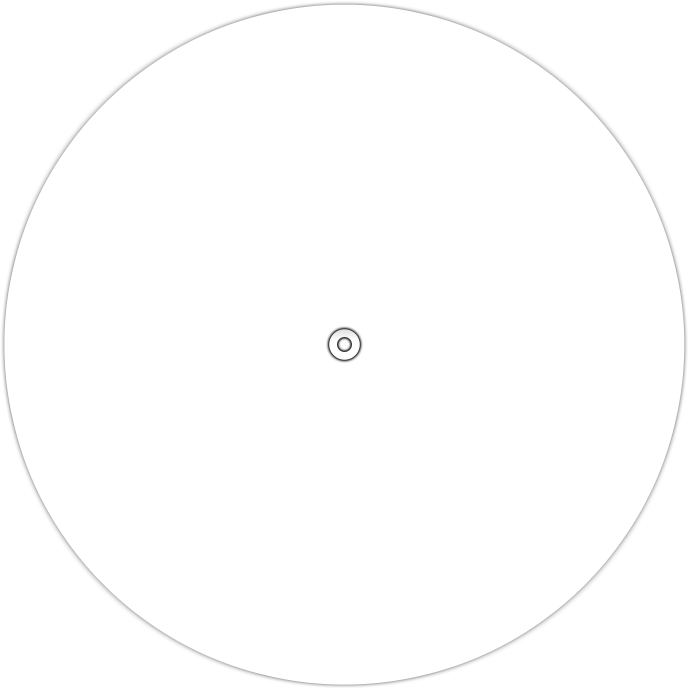


When it comes to the new spinner, here you’re gonna be skinning 5 files. 3 of them are rotating, each with a different speed.
spinner-bottom
spinner-bottom.png Is the slowest one of them all. And as the name suggests it’s also layered at the very back.
spinner-top
spinner-top.png is layered just above spinner-bottom.png, and also rotates faster
spinner-middle
Next on the list is spinner-middle.png, which unlike the previous 2 files, does not rotate at all. But it does get tinted with red over time. It’s also layered the highest out of all new spinner assets.
spinner-middle2
Lastly, we have spinner-middle2.png. It’s the fastest rotating one, and is layered just below spinner-middle.png
spinner-glow
Moving on, we have spinner-glow.png. This is the back-most layer that shows up over time as your spin progresses. It’s tinted cyan, but will blink white when points are being awarded.
Spinner - Other
Now that we’re done explaining files for the old and new spinner, it’s time to go through the assets that are shared by both.




spinner-approachcircle
spinner-approachcircle.png works similar to approachcircle.png for hitcircles. It shrinks over time, but unlike the other one, it doesn’t show you when to start spinning, but rather when the spinner will end.
spinner-rpm
The little area at the bottom that shows you how fast you’re spinning is spinner-rpm.png. RPM stands for “Revolutions per minute”, and not “Rotations per minute” like some may think. The counter itself uses the same numbers as your score counter, and does not have its own number set.
spinner-clear
When you successfully manage to spin your way to a point where the game will start awarding you points for spinning, another thing will appear on top of the spinner. That file is called spinner-clear.png, and people have made some cool things with it. Like outlining the spinner circle, or incorporating it into the designs of their spinners.
Of course you can go the simple way and just make it what it is supposed to be. But, keep in mind a lot of things in skinning can be creatively exploited to make something outside of its original use.
spinner-spin
And just like spinner-clear.png appears near the end of a spinner, spinner-spin.png appears at the very beginning of it. The file is pretty similar to the other one, just positioned in a different place.
Spinner ini options
Click here for a list of all spinner ini options
Hitbursts
Moving on from spinners, we can focus on the last important part, which are the hitbursts.
The file names are super simple to remember. The filename starts with hit, followed by the hitburst it represents, with 0 being used for misses.





300’s and 100’s also have special variants that show up at the end of a combo. Those being the geki and katu hitbursts, signified by the g and k at the end of the filename. 100’s only have their regular and a katu variant. While the 300’s have the regular, katu, and geki.
If you don’t know, the difference between them lies in how many 100’s you had in a combo, and what the final hit of the combo was. If you have more than 1 100 in a combo, you will get a 300 katu from the last hit in a combo, if you have no 100s, you will get a 300 geki, but if you end a combo with a 100, regardless of what the other hits were, you will get a 100 katu. Those special hits replenish a bit of the player’s HP, so you can use that information to your creative advantage when skinning them. But I know very well those 300s are not gonna see the light of day like ever so, yeah.
Hitsounds
There are also the hitsounds, or the sounds which play whenever you click on a note. We’re not gonna cover how to make them yourself here, since that would require a general tutorial focused solely on sound effects which will come later. But I will at least let you know how things work.
There are 3 or 4 samplesets within osu, depending how you look at the 4th one really. They all have a prefix at the beginning, followed by a dash (-), and the type of the hitsound the file is for.
drum, normal, and soft, are the samplesets which interest you the most. Those are the ones which play pretty much constantly throughout the map. Each one of these has exactly 7 audio files, which are:
{prefix}-hitnormal{prefix}-hitclap{prefix}-hitfinish{prefix}-hitwhistle
Note: {prefix} is the sampleset (drum, normal, soft, or nightcore).
These are the ones which are related to the note sounds
{prefix}-slidertick- for the sound of the slider ball going over a slider tick{prefix}-sliderslide- the looped sound of holding a slider{prefix}-sliderwhistle- another looped sound when holding a slider, but with a little bit more emphasis to it.
People don’t really like the last 2, and they tend to replace them with silent files, but if you like them, that’s completely fine.
If you have ever dabbled in making mixed skins, or the skins which assets you don’t make yourself and just use what other people have made in your own skin mashup. You may have noticed that there are quite a few hitsounds “missing”, since whenever you copied hitsounds from another skin there were quite a few more than the ones I just mentioned. Like hitsoft, hitclap2, or some very weird ones with very interesting names. Those are never used in-game, they’re just there because someone one day kept them in their files. And since your average person does not know how to go about making their own sounds, people just copied those unused files, to the point where they still persist in most skins to this very day.
Spinner Sounds
You may also want to customize the sounds that are related to the spinners. And here we are looking at 2, or possibly 3 of them, depending on whether the last one will interest you or not.
spinnerspin is a looped sound that plays over and over whenever you’re spinning the spinner. Its sound is modulated from ~500hz, up to a whopping 80000hz. This interaction can be disabled by setting SpinnerFrequencyModulate: to 0 in the [General] section of your skin.ini file.
You’re gonna hear spinnerbonus play whenever you are being awarded points for spinning.
And in lazer, you also have the choice to skin spinnerbonus-max, which plays when the maximum amount of points for spinning has been awarded.
Smaller files
Particles


If you would like to spice up your hitbursts even more, the game has another asset for you to skin that accompanies them.
Particles show up with 50s, 100s, and 300s. (misses do not have particles).
There isn’t much to say about them other than the fact they spread outwards when you get any of the aforementioned hits, and also need to have the hitbursts skinned if you want your particle assets to take effect.
Lighting

Next up, we have hit lighting, the thing that nobody ever touches, because this is the treatment it gets when people discover it can be disabled.
But anyway, it’s the tinted glow that shows up after you hit a circle. It also has some special interactions during kiai time, which represents the most “hype” part of a song, where some special effects are happening on screen to give it a bit more of that special feeling.
So the hit lighting during kiai is a part of the hitburst explosion, and is also glowing behind hitcircles. But yeah, nobody ever sees those cause it’s a bit hard when they’re disabled.
Comboburst
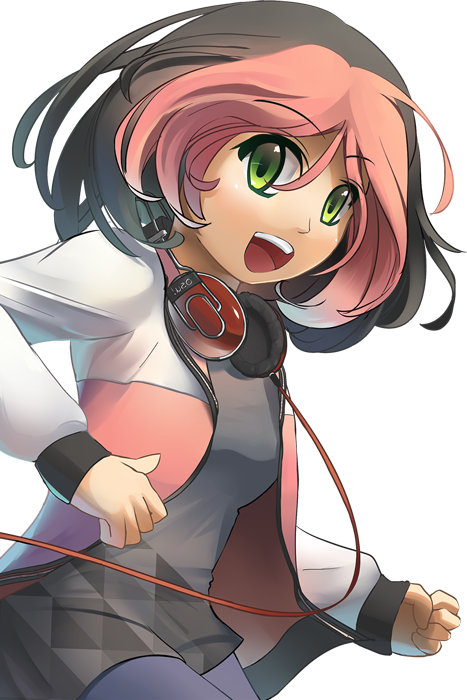
Combobursts get the same treatment as hit lighting.
You’re gonna put anime girls on those, and nobody is ever gonna see them cause the first thing everybody does is turn combobursts off.
But if by sheer miracle somebody has them on, you have to make sure that the characters you put on them are facing the right side of the canvas. And if your images are clipping, it would be best for them to clip at the bottom, since combobursts have their anchor point in the bottom left side of the asset.
You can have more than one comboburst, and all you have to do to achieve that is just have multiple PNGs in your folder, and name them comboburst followed by a dash with a number (comboburst-#). If you do have multiple of them, the number needs to start at 0, so comboburst-0, comboburst-1, etc. You can also make them appear at random on combo milestones instead of being sequenced by setting ComboBurstRandom: to 1 in the [General] section of your skin.ini. You can also add custom sounds to them by simply adding a bunch of audio files named just like the comboburst files. Additionally, you can set CustomComboBurstSounds: in the [General] section to the combo the sound should play at. So CustomComboBurstSounds: 50, 100, 200, 300 would play at the combos specified.
Lazer specific
osu!lazer has a few files of it’s own.
score-pp.png is used as a label for the LegacyPerformancePointsCounter component.

The very last thing you’re gonna learn are the lazer specific files for slider accuracy. Those are sliderendmiss.png and slidertickmiss.png. Both show up when the player misses their respective gameplay element.


Outro
That’s it for the osu!standard side of things. Hope you managed to follow through without any trouble. Next up we’re gonna look at skinning osu!taiko, one of the three minigames that comes bundled with the main game. See you next time!
Credits
- Aristia(Edit)+trail by Aristia
- Amaestric v1.2 by Abyssal & Auji
- WhiteCat 1.0 (CK) by cyperdark
- Asu-Rina by Redo & Sigma
- XooMoon by Redo & Xootynator
- Midnight 3.5 Red by iSweat
- aetrnaaberrateFujiwara v3 by Various Artists
- Game Over - A Silver Wolf v1.5 by Sigma
- With Hushed Whispers by MeowKimiku
- New Era by Komo